

Hey UXtweakers! 🐝
AI prototyping tools (often called vibe coding tools) can take you from an idea to a working prototype in minutes.
But building faster doesn’t automatically mean building better, and it’s easy to move quickly while still designing on assumptions.
So one question matters more than ever: does it actually work for your users?
We’ve made it much easier to find out: by testing prototypes created with tools like Lovable, Base44, Figma Make, Vercel, Bolt, Magic Patterns, and Replit directly with UXtweak Website Testing.
Here’s what’s new.
Choose your AI prototyping tool during setup
When setting up a Website Testing study, you can now choose what you’re testing directly in the General tab.
Alongside a regular Live Website, you can select the AI prototyping tool you used to create your prototype.
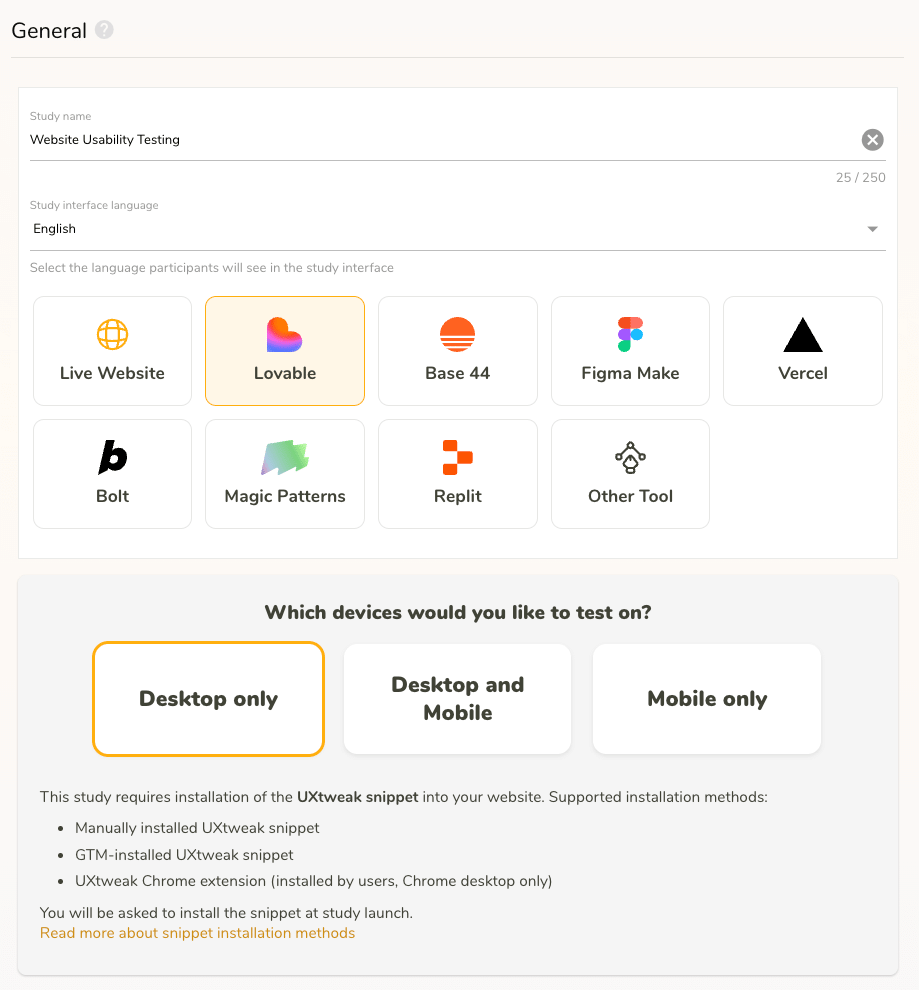
Choose from:
- Lovable
- Base44
- Figma Make
- Vercel
- Bolt
- Magic Patterns
- Replit
- Other Tool
Once you select an AI prototyping tool, there’s no need to enter the tested website during setup. UXtweak adapts the flow for testing your prototype instead.
So you can focus on setting up your study and tasks without worrying about the usual website configuration.
Connect your prototype with a prompt
When it’s time to launch your study, connecting your AI prototype to UXtweak is now much easier.
If you’re using the manually installed UXtweak snippet, you’ll get a ready-to-use prompt containing the snippet together with instructions for adding it to your prototype.
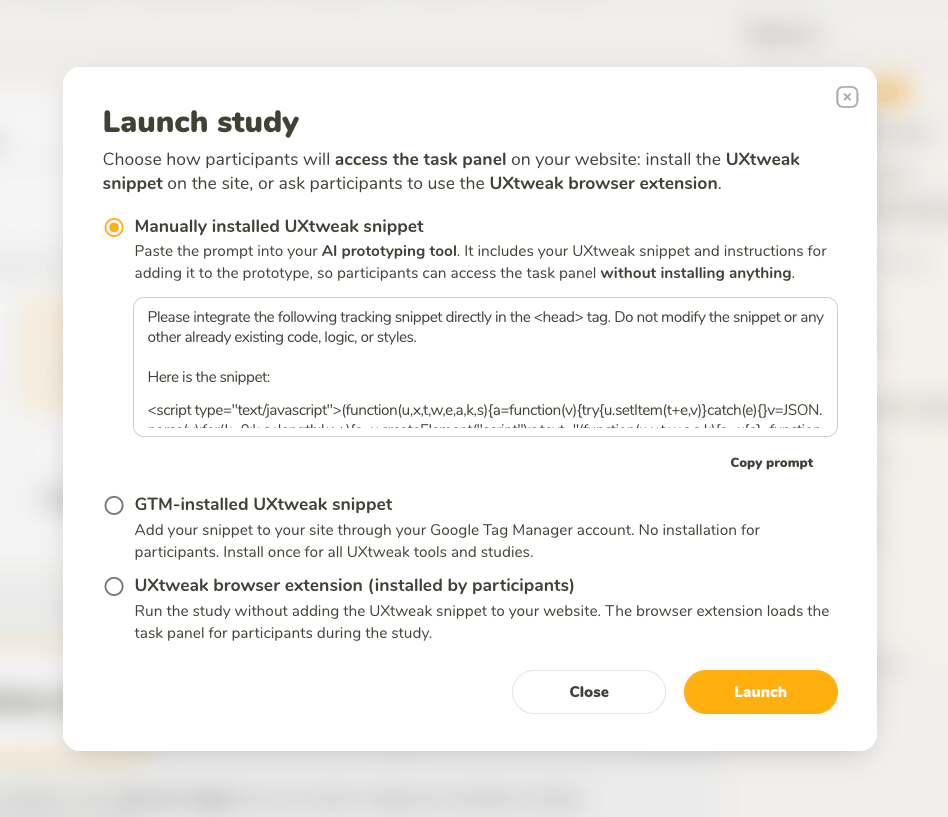
Simply click the Copy prompt, paste it into the AI prototyping tool you’re using, and let it take care of adding the snippet.
No need to dig through generated code just to figure out where it belongs.
💡 Pro Tip
AI tools sometimes rewrite large parts of a project when you iterate. After a big round of changes, do a quick check that the snippet is still there before you send your study to participants.
Using Google Tag Manager instead?
The flow works similarly. When your prototype needs the GTM snippet, UXtweak gives you a prompt you can paste into your AI prototyping tool to add it.
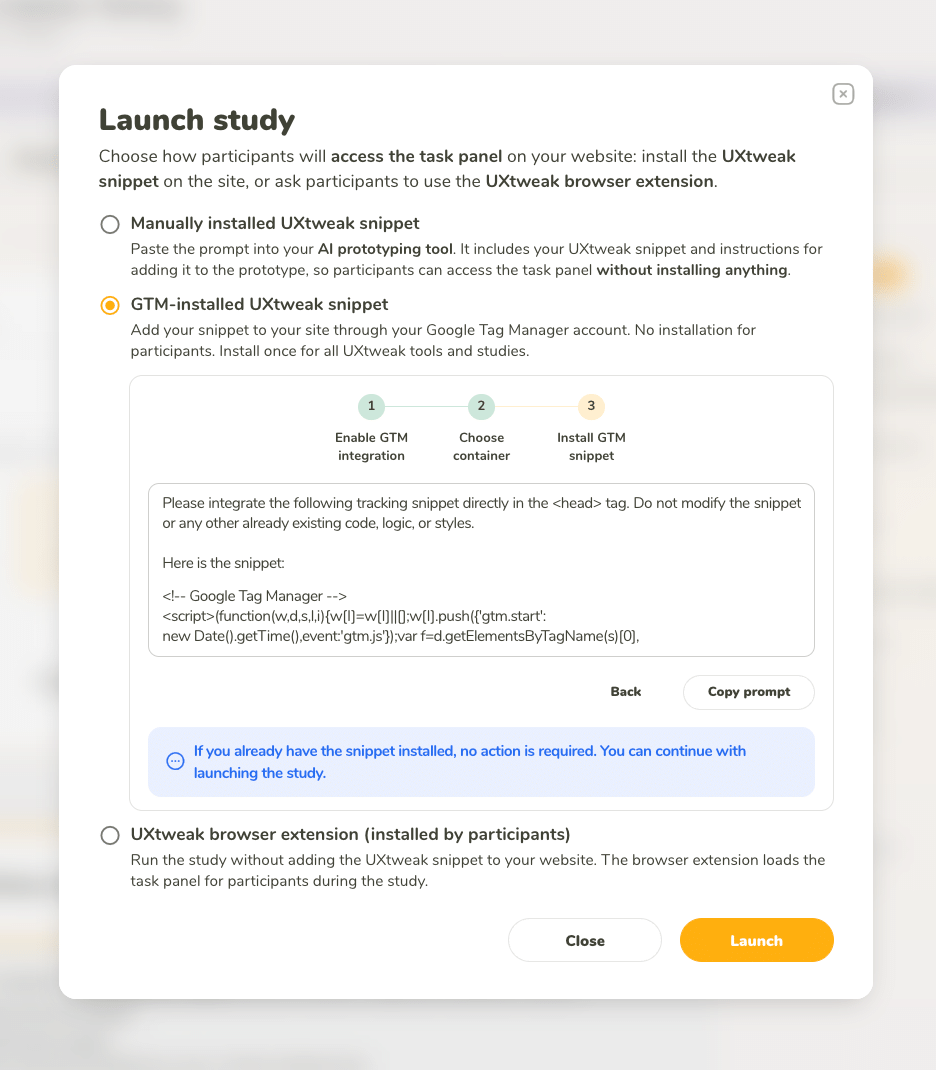
If the required snippet is already installed, there’s nothing else you need to do.
And if you prefer using the UXtweak Chrome extension, that flow stays exactly the same as before.
Build fast, learn faster
Building is faster than ever.
The real opportunity is bringing research and design closer together, so you can explore an idea, test your assumptions and validate a solution in short, continuous feedback loops instead of one big test at the end.
With this update, that loop can look like this:
- Build your prototype in your favorite AI tool.
- Select that tool in your Website Testing setup.
- Paste the generated prompt to connect your prototype.
- Launch, and watch how real users interact with what you’ve built.
As always, we’d love to hear what you think.
Happy researching,
UXtweak team 🔧🐝